 Schedule a Task:
Open the Schedule Task screen:
From the Full Menu => Other section, click Manager's Screen.
Click the icon on the left for the Full Menu.
 OR
OR 
This will display the Full menu in a tabular form, with four sections, Registration, Status, Cashier and Other.
 OR
OR 
Select Other from the Other section.
 OR
OR 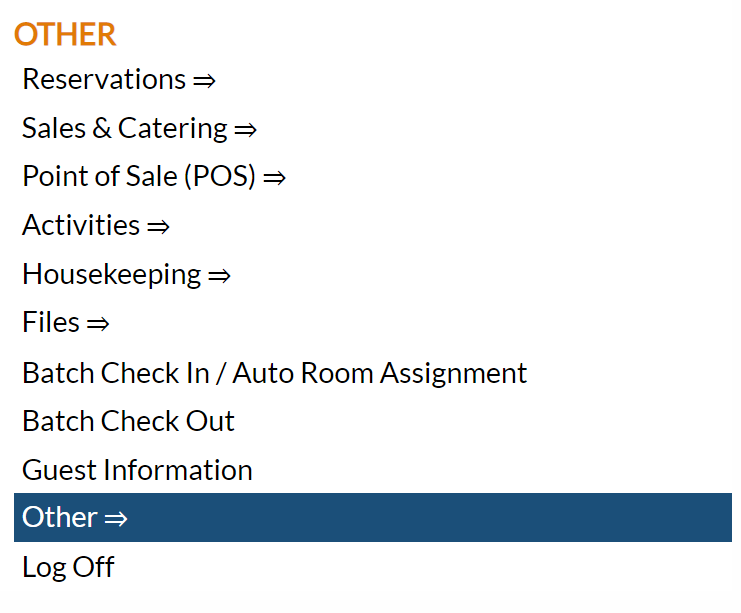
This will take you to the Other Front Desk Tasks Menu, which has four sections, Other List 1, Other List 2, Documents and Web.
 OR
OR 
Select Manager's Screen to be taken to the Manager's Commands Menu screen, which has two sections, Manager's Configuration and Manager's Maintenance.
 OR
OR 
OR:
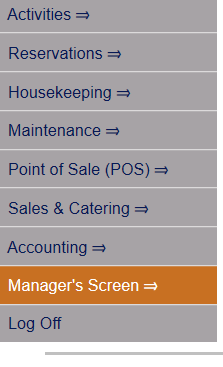
Select Manager's Screen from the Quick Menu on the left side of the screen, to be taken to the Manager's Commands Menu screen.
 OR
OR 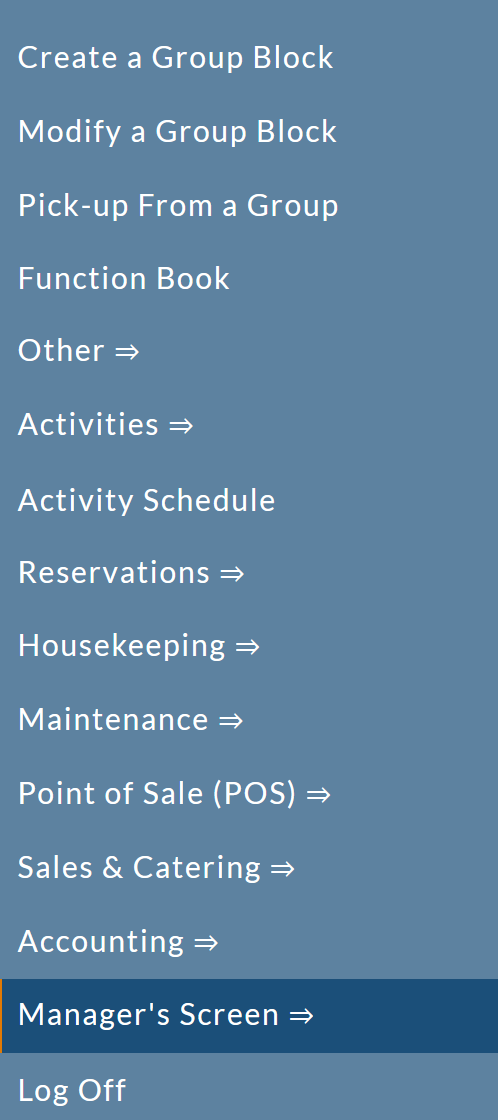
Select Scheduled Tasks from the Manager's Maintenance section.
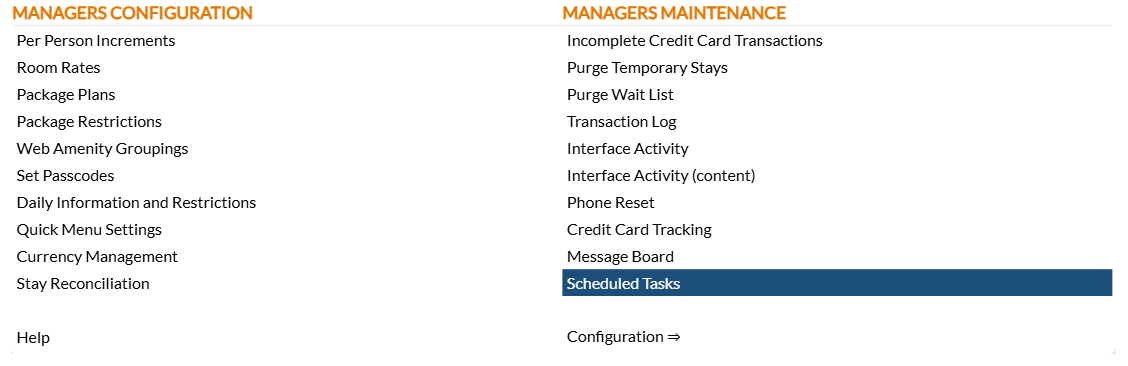
When selected, the Scheduled Tasks screen will open.
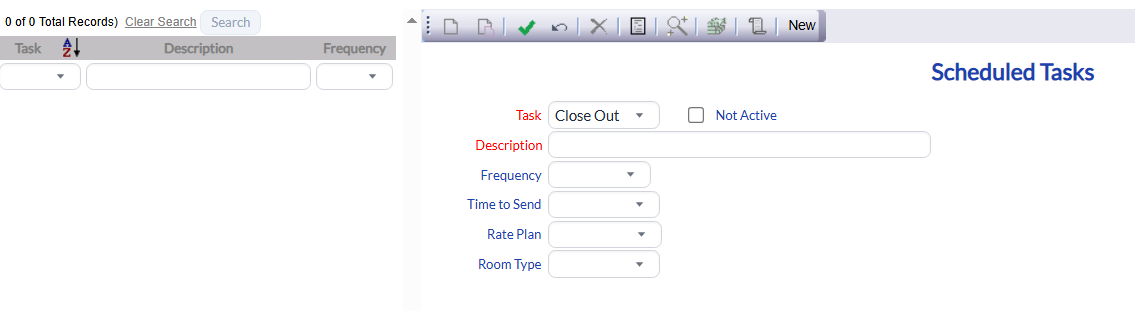
Note: If NO Scheduled Tasks have been added yet, a pop up message from Skyware will appear first, asking if you wish to a new record.
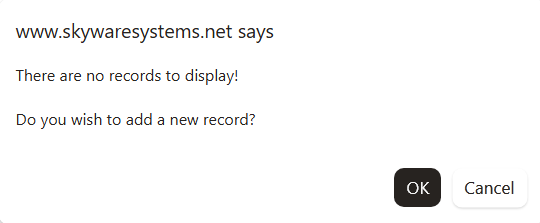
Click "OK" to continue on to the Scheduled Tasks screen.
The screen display is split into two frames, with the left side of the screen listing any already configured Schedules Tasks for the Property and the right side containing the fields you need to complete in order to add or edit a Scheduled Task. Any changes made on the right, once saved, will be updated in the listings to the left.
The currently configured options are displayed by:
Task: The selected task option for this scheduled task.
Description: The description entered into the description field. Multiple scheduled tasks may be entered into the system using the same "Task" option. The description should indicate the difference between them.
Frequency: The selected frequency the scheduled task should take place. This will indicate if the task is to occur daily, weekly or monthly.
Selecting any Scheduled Task will display the details on the right.
Your options include the following:
Generate a new entry:
Click the New  button from the toolbar to add a new Scheduled Task.
Complete the fields described below.
OR:
Select an existing Scheduled Task from the list on the left, and click the Replicate  button from the toolbar. Then change the field information as described below.
Edit the current selection:
Change the field information described below.
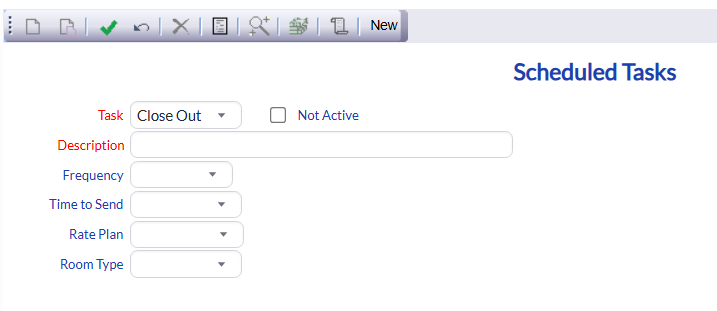
Task: Select the task you wish to have performed on a schedule. This is a drop-down menu of tasks that are available to schedule. Select one.
Note: Currently, the only available Scheduled Task is "Close Out".
This field is required
Not Active: This box may be checked or unchecked. By default it is unchecked. Click this option to deactivate the scheduled task without deleting it. Once an scheduled task has been created, it cannot be deleted from the system.
Description: Enter the description you wish for the scheduled task.
Note: Multiple scheduled tasks may be entered into the system using the same "Task" option. The description should indicate the difference between them.
This field is required
Frequency: Frequency of Communication (how often the scheduled task will be completed). This is a drop-down menu of frequency options, including daily, weekly and monthly. Select how often you wish the scheduled task to occur.
Time to Send: Time to send the scheduled task. This is a drop-down menu of timing options, including every hour from 5 am to 10 pm.
Note: If this field is left blank the task will be performed during the night audit process.
Rate Plan: The scheduled task may be filtered by Rate Plan. This is a drop-down menu listing all available Rate Plans. Select one, or if the scheduled task is not to be filtered by a specific rate plan, leave blank.
Room Type: The scheduled task may be filtered by Room Type. This is a drop-down menu listing all available Room Types. Select one, or if the scheduled task is not to be filtered by specific room type, leave blank.
When you are finished adding or editing any Scheduled Task, click the Save  button to save the changes. This will ensure that the task will be performed automatically by Skyware (on the selected schedule).
To view any changes made to this screen, click the Activity log  button in the local tool bar.